
Software Updates
The software of the WomoNET.core (operating system, WomoNET service and the app) is always delivered as one package. There are two ways to bring it up to date:
- Update in the app: the normal way. The WomoNET.core downloads and installs the new version itself. Your layout and settings are kept.
- Reinstall with the flasher: for devices with older software that cannot update themselves yet, and for recovery. The whole memory of the device is overwritten, so all settings are lost.
How updates work
One package for everything
Operating system, WomoNET service and app are tested together and released as one version. They are never updated individually, so the parts of a device always match each other.
Release channels
Every release belongs to one of three channels. You choose the channel your device follows:
| Channel | Contents |
|---|---|
| Stable | Tested and reliable releases. Recommended for everyday use. |
| Beta | Release candidates for testers. New features before they reach Stable. |
| Preview | Newest features, built automatically from the current development state. May be unstable. |
The channels use the same names as the integration status of the compatible devices. A device with the status Preview is first supported in the Preview channel, and later in Beta and Stable.
Safe installation
The WomoNET.core has two system slots. The running system stays untouched while an update is written to the other slot. Only on the next restart does the device switch to the new version. If the new version does not start, the device falls back to the previous version on its own.
Every update package is signed. The WomoNET.core only installs packages that carry a valid WomoNET signature.
What is kept
Your layout configuration, your settings and your network configuration (WiFi, LAN, hotspot) are stored in a separate data area. An update in the app does not touch it.
Nothing happens without you
The WomoNET.core never searches, downloads or restarts on its own. The WomoNET.core may be connected via a mobile data plan, so every step needs your confirmation.
Updating in the app
The WomoNET.core needs an internet connection for this.
- Open the menu and go to Settings → System → Software Update.
- Under Update channel, pick Stable, Beta or Preview.
- Tap Check for updates. The page shows the Installed version and, if there is a newer one, the Available version. What’s new lists the changes since your installed version.
- Tap Download & install. The progress is shown in percent. You can keep using the WomoNET.core during this step.
- Tap Restart to apply and confirm with Restart now.
- The WomoNET.core restarts into the new version and is unavailable for a short while. Reload the app once it is back.
If you cannot find Software Update in the settings, your WomoNET.core is running older software without this function. Install the current version once with the flasher. After that, all further updates are done in the app.
Reinstalling with the flasher
The WomoNET.core Flasher installs the software over a USB cable, directly from your browser. Use it when:
- your WomoNET.core has older software without the in-app update,
- the WomoNET.core no longer starts correctly,
- you want to go back to an older version.
What you need
- A computer with Google Chrome, Microsoft Edge or another Chromium-based browser. Other browsers such as Firefox and Safari cannot talk to USB devices.
- A USB-C cable that carries data (some charging cables do not).
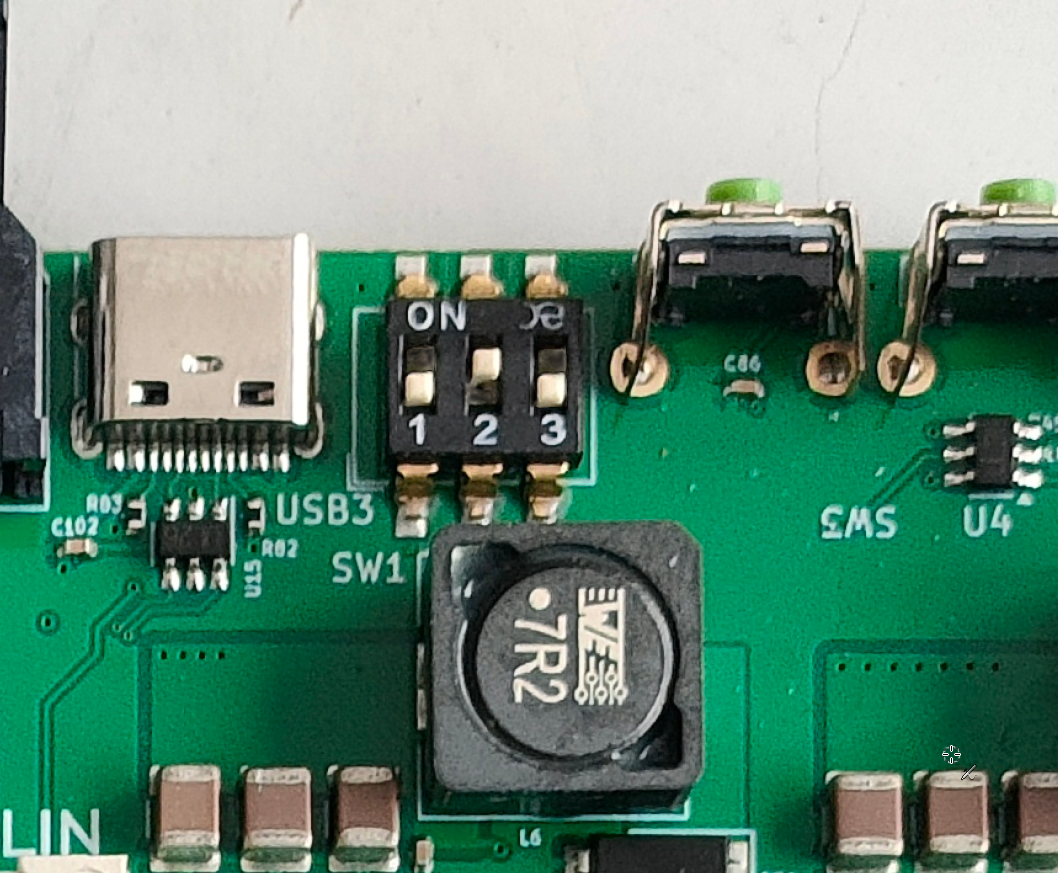
- Access to the DIP switch SW1 on the board. It sits directly next to the Main USB port on the top side:
Step 1: Back up the layout configuration
- Open the WomoNET app and go to the settings
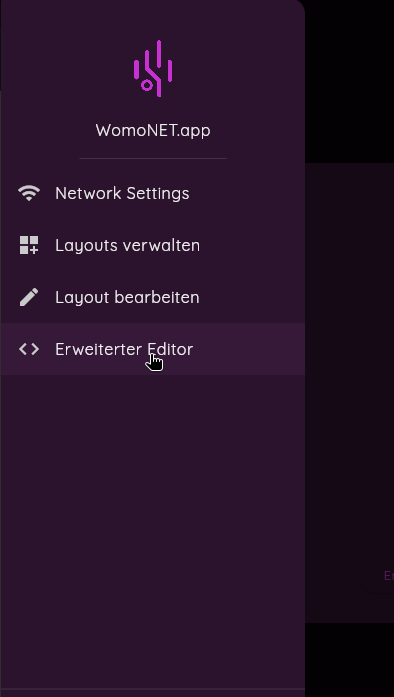
- Select Advanced Editor
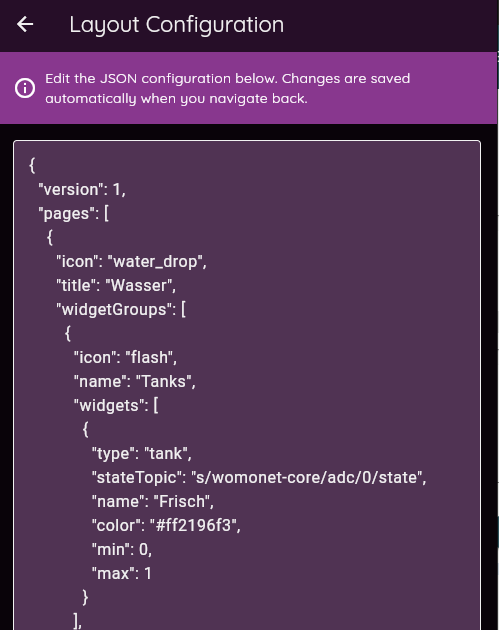
- Copy the complete JSON content of the layout editor and save it in a text file (e.g.
layout-backup.json) - Keep this file safe, you will need it after flashing
Step 2: Flash
Open the WomoNET.core Flasher and follow its steps. It guides you through choosing the version, switching SW1 to USB boot and back, and the flashing itself.
To install a specific older version, download its .wcfb file from dl.womonet.io and load it in the flasher instead of choosing a channel.
Step 3: Set up again
- Connect the WomoNET.core to your network again, as described in Getting Started.
- Restore your layout:
- Open the WomoNET app and navigate to Settings → Advanced Editor
- Select and copy the complete content of the saved text file (
layout-backup.json) - In the Advanced Editor, replace the entire JSON content and save the configuration
- Reload the app (refresh the page) for the changes to take effect
- Check that all layout elements have been restored correctly
From now on you can install updates directly in the app.